
Download Teleport – Seamless Multi‑Mac Control, File Sharing & Clipboard Sync
Overview
Teleport is a lightweight, free preference‑pane utility that lets you control several Macs with a single keyboard and mouse. Designed for developers, designers, and anyone who runs a Mac Mini alongside a primary Mac, Teleport removes the friction of constantly swapping peripherals. Once installed, you simply drag your cursor to the edge of one screen and it “teleports” to the next Mac on the same network.
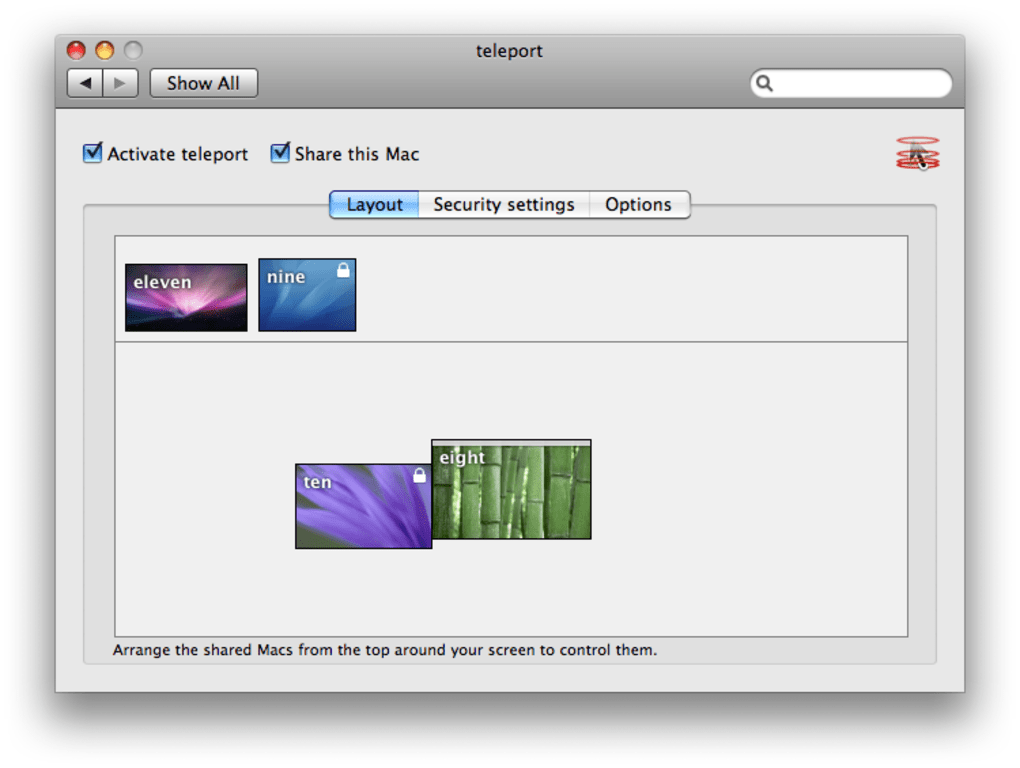
The app also synchronizes the clipboard (pasteboard) and supports drag‑and‑drop file transfers between machines, making it feel like a single extended desktop rather than a collection of isolated computers. Built on Apple’s Bonjour service, Teleport automatically discovers compatible hosts, so no manual IP configuration is required. Its minimalistic interface lives in System Preferences, offering a clear list of shared Macs, an ordering grid, and a toggle to enable or disable sharing.
Recent updates have improved stability during file transfers, fixed crashes when changing remote options, and made the host list scrollable again. Whether you’re a Mac Mini owner without a dedicated keyboard, a studio that needs a seamless workflow across multiple workstations, or a power user looking to simplify a multi‑Mac setup, Teleport delivers a secure, low‑latency solution that feels native to macOS.
Key Features
- Single Keyboard & Mouse Control: Move your cursor across any connected Mac by simply dragging it to the screen edge.
- Drag‑and‑Drop File Transfer: Seamlessly move files between machines without using external drives or network shares.
- Clipboard Synchronization: Copy on one Mac, paste on another instantly, keeping your workflow fluid.
- Bonjour‑Based Discovery: Automatic detection of all Teleport‑enabled Macs on the same local network.
- Custom Host Ordering: Arrange the order of your Macs to match your physical monitor layout.
- Secure Connection: All communication stays within your local network, encrypted by macOS networking layers.
- Lightweight Preference Pane: No bulky background processes; Teleport runs only when needed.
- Free for Personal Use: Full functionality without a license key, with optional donations for continued development.
Installation & Usage Instructions
Step‑by‑Step Installation
1. Download the latest Teleport package from the official website. The installer is a standard .dmg file compatible with macOS 10.12 and later.
2.
Open the disk image and drag the Teleport preference pane into the System Preferences → Extensions folder. macOS will prompt you to confirm the installation.
3. Restart System Preferences to see the new “Teleport” icon. Click it to open the configuration panel.
Configuring Hosts
Inside the Teleport pane, you’ll see a checkbox labeled “Share this Mac”. Enable it on the machine you want to control from another Mac. On the secondary Mac, click “Add Host” and Teleport will automatically list any reachable Macs that have sharing enabled. Drag the icons to reorder them so the visual layout matches your physical monitor arrangement. Once the order is set, you can test the connection by moving the cursor to the edge of the primary screen; the cursor will instantly appear on the secondary display.
Using Clipboard & File Transfer
The clipboard sync works out of the box—just copy text or images on one Mac, and they become available on the other. For file transfers, simply click and drag a file from Finder on one machine, move the cursor across the edge, and drop it into a folder on the remote Mac. Teleport handles the copy operation in the background, preserving file metadata and permissions.
Troubleshooting Common Issues
If a host does not appear, ensure both Macs are on the same Wi‑Fi or Ethernet network and that Bonjour (mDNSResponder) is not blocked by a firewall. Restarting the Teleport preference pane or rebooting the machines often resolves discovery hiccups. For persistent problems, the “Log” tab provides detailed messages that can be sent to the developer for assistance.
Compatibility & System Requirements
Teleport is built exclusively for macOS. It supports the following versions:
- macOS 10.12 (Sierra) and newer, including macOS Ventura, Sonoma, and upcoming releases.
- All Intel‑based Macs as well as Apple Silicon (M1, M2, and later) – the preference pane runs natively on both architectures.
Because Teleport relies on Bonjour for host discovery, it works best on a stable local network (Wi‑Fi or wired). It does not require any additional drivers or third‑party software, and there are no known conflicts with popular security suites such as Little Snitch or Malwarebytes, provided that local network traffic is allowed.
The application is lightweight, typically using less than 10 MB of RAM while active, and it does not run any background daemons when the preference pane is closed. This makes it suitable for low‑power devices like the Mac Mini or MacBook Air, where preserving battery life and system resources is important.
Pros, Cons & Frequently Asked Questions
Pros
- Eliminates the need for multiple keyboards and mice.
- Instant file drag‑and‑drop across machines.
- Clipboard sync works for text, images, and rich media.
- Zero‑configuration discovery via Bonjour.
- Free for personal and commercial use.
- Runs natively on both Intel and Apple Silicon Macs.
Cons
- Limited to macOS; no Windows or Linux support.
- Requires all Macs to be on the same local network.
- Advanced network setups (VPNs, VLANs) may need manual Bonjour forwarding.
- File transfer speeds are bound by the underlying network bandwidth.
FAQ
Can Teleport work over Wi‑Fi and Ethernet simultaneously?
Yes. Teleport uses Bonjour, which operates over any IP network interface. As long as both Macs can see each other on the same subnet—whether via Wi‑Fi, Ethernet, or a mix—the connection will be established automatically.
Is the clipboard synchronization secure?
Clipboard data never leaves your local network. macOS handles the underlying transport with encryption, so the information remains private and is not exposed to the internet.
What should I do if a host does not appear in the list?
First, verify that both Macs are on the same network and that Bonjour isn’t blocked by a firewall. Restart the Teleport preference pane on both machines, or reboot the computers. If the problem persists, check the “Log” tab for error messages and ensure the “Share this Mac” option is enabled on the missing host.
Can I use Teleport with a Mac Mini that has no attached monitor?
Absolutely. Teleport shines in this scenario. You can control a headless Mac Mini from a primary Mac, drag files to it, and copy/paste between them without ever needing a dedicated keyboard or mouse for the Mini.
Is there a paid version with additional features?
Teleport is free for all core features. The developer accepts donations to fund ongoing maintenance, but there is no tiered pricing model. All users receive the same functionality, including file transfer and clipboard sync.
Conclusion & Call to Action
If you manage multiple Macs in a studio, office, or home environment, Teleport offers a simple, secure, and cost‑free way to unify your workflow. By turning your keyboard and mouse into a universal controller, it eliminates desk clutter, speeds up file exchange, and keeps your clipboard in sync across machines. The installation process is straightforward, and the reliance on Bonjour means you won’t need to wrestle with IP addresses or VPN tunnels. While it is limited to macOS, the feature set more than compensates for the niche focus, especially for developers and designers who already work within the Apple ecosystem.
Ready to boost your productivity? Download Teleport now, follow the quick setup guide, and experience a truly seamless multi‑Mac environment. Join the community of power users who have already streamlined their workstations—your keyboard and mouse are waiting to be teleported!
Overall Rating: 4.5 / 5
Teleport delivers exactly what its tagline promises—a frictionless way to control multiple Macs with a single set of peripherals. The drag‑and‑drop file transfer feels native, and clipboard sync works without a hitch. Minor drawbacks such as lack of Windows support are outweighed by its stability and zero‑cost model. Highly recommended for any Mac‑centric workflow.







